
AlphaRes · The Custom Resolution Tool That Actually Stays Locked
AlphaRes is a free, open-source Windows utility that writes any custom or stretched resolution into Fortnite’s GameUserSettings.ini and locks the file so Epic’s update process cannot revert it. Used by competitive Fortnite players since 2019. Verified safe across every major antivirus engine, MIT-licensed, and 533 KB.
What is AlphaRes?
A precision Windows utility for competitive Fortnite players who need their custom or stretched resolution to survive the patch cycle.
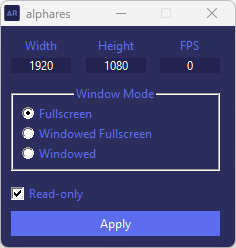
AlphaRes is a specialized Windows utility designed for Fortnite players who run custom or stretched resolutions and want those settings to persist across the game’s update cycle. The application performs a small, well-defined set of operations: it writes user-defined width, height, and frame-rate values into Fortnite’s GameUserSettings.ini configuration file, applies the chosen window mode (Fullscreen, Windowed Fullscreen, or Windowed), and toggles Windows’ read-only file attribute so the configuration is not silently overwritten when Epic Games ships a patch. The compiled binary is 533 kilobytes, distributed as a self-contained x64 executable that requires no installer, no service, and no driver.
The tool was created in 2019 by Brayden Carlson and has remained the competitive Fortnite community’s reference utility for stretched-resolution lock-in ever since. Stretched resolutions such as 1440×1080, 1600×1080, 1720×1080, and 1750×1080 are widely used across Battle Royale, Zero Build, Reload, and Creative modes to widen player models, increase frame rates on lower-end hardware, and align with the configurations published by professional players. Without an external lock mechanism, those resolutions revert to native 1920×1080 on every patch because Fortnite’s update process treats non-standard values as drift and reconciles them.
AlphaRes solves that single, well-defined problem and does nothing else. It does not inject code into the running Fortnite process, does not communicate with Epic Games’ servers, does not install drivers, and does not run any background service. From the perspective of Easy Anti-Cheat, the application is indistinguishable from a player editing the same resolution value through Fortnite’s own user interface. That narrow scope is why the tool has remained ban-free across every major Fortnite season since release.
This homepage is the canonical entry point for the alphares.org knowledge base. Below you will find the complete guide to AlphaRes including installation, usage, safety verification, comparisons against alternatives such as the NVIDIA Control Panel and AMD Adrenalin GPU Scaling methods, recommended stretched resolutions used by professional Fortnite players, troubleshooting for the most common issues, and an extensive frequently asked questions section. Every cluster of dedicated guides is linked at the end of this page for deeper exploration of specific topics.
Key Features of AlphaRes
Eight precise capabilities, no bloat. Each feature corresponds to a single technical operation against the Fortnite configuration file.
Custom Resolution Write
Specify any width and height your monitor and GPU support. AlphaRes writes the exact values into the ResolutionSizeX and ResolutionSizeY keys, plus the matching LastUserConfirmedResolutionSizeX and LastUserConfirmedResolutionSizeY entries that Fortnite uses for reconciliation.
Read-Only File Lock
The signature feature. After writing the resolution, AlphaRes flips Windows’ read-only file attribute on GameUserSettings.ini. Fortnite’s patch process can no longer overwrite the file, which is precisely why the resolution survives every chapter rollover.
Window Mode Toggle
Three radio options write the corresponding FullscreenMode and LastConfirmedFullscreenMode values: 0 for plain Fullscreen, 1 for Windowed Fullscreen, and 2 for Windowed. Plain Fullscreen is recommended for the lowest input latency on competitive setups.
Frame Rate Cap
Writes FrameRateLimit directly so the cap survives patches. Set to 240 for a 240Hz monitor, 360 for a 360Hz panel, or any custom value. Skip if using an external limiter such as RTSS or NVIDIA Reflex’s framerate cap.
Backup & Revert (v1.1+)
On the first run, AlphaRes captures the original configuration values to a backup file. The dedicated revert action restores those values and unsets the read-only attribute, returning Fortnite to its native pre-AlphaRes state in one click.
Portable & Lightweight
A single 533 KB executable. No installer, no registry keys, no scheduled task, no autostart entry, no telemetry, no auto-update background process. The application can be carried on a USB stick and run from any directory the user has read access to.
Open Source & MIT Licensed
The complete source code is published under the MIT license at the maintainer’s repository, allowing independent code review, custom builds, and verification that the released binary corresponds bit-for-bit to the published source.
Anti-Cheat Safe
AlphaRes does not interact with Fortnite’s process memory, does not hook DirectX, and does not modify any file inside the Fortnite installation directory. Easy Anti-Cheat treats the resolution change identically to one made through the in-game settings menu.
Locale-Independent
The application reads and writes the same configuration file regardless of the player’s Fortnite language or Windows locale. Players in Spanish, Portuguese, Russian, Vietnamese, Indonesian, French, German, Polish, and Turkish-speaking communities use the same binary.
Why Stretched Resolution for Fortnite?
A practice borrowed from Counter-Strike, refined through tens of thousands of competitive matches, and now embedded in the workflows of the top Fortnite players.
The practice of running a non-native, “stretched” aspect ratio originated in the Counter-Strike community in the late 2000s and migrated into other competitive titles as those titles matured. In Counter-Strike 2 today, the vast majority of professional players run a custom resolution, often 4:3 stretched to 16:9 monitors, because the wider character models and consistent muscle memory across LAN and online setups outweigh the field-of-view tradeoff. In Fortnite, the picture is more nuanced. The majority of professional Fortnite players run native 1920×1080, but a meaningful and influential minority — including names such as Clix, NRG roster members, parts of the Liquid stable, and historically Tfue — run stretched resolutions ranging from 1440×1080 to 1750×1080.
The Field-of-View Tradeoff
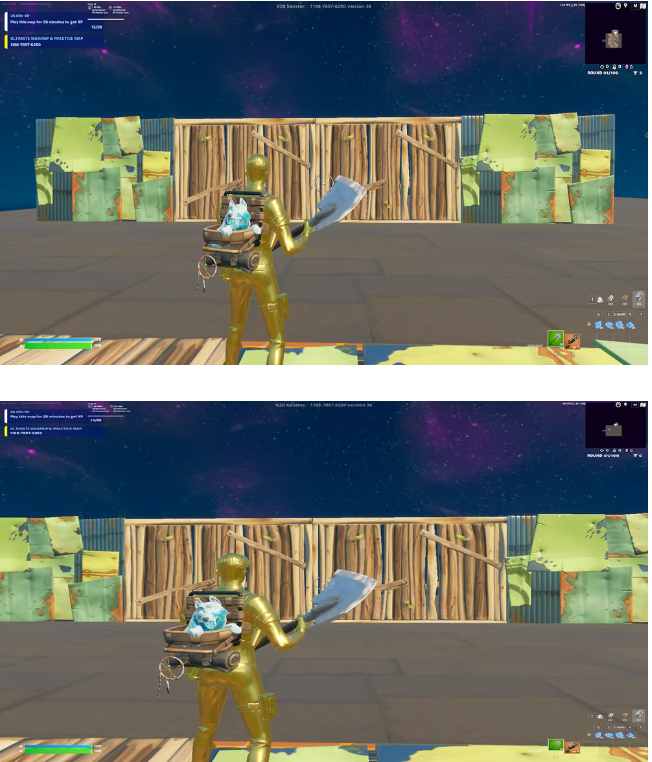
The most direct visual consequence of stretched resolution in Fortnite is a horizontal field-of-view reduction. At 1440×1080 mapped to a 16:9 panel, the player loses approximately 25% of horizontal screen real estate compared to native 1920×1080. In the comparison screenshot above, a defender at 1920×1080 can see beyond the wall on the right edge of the frame, while the same player at 1440×1080 sees only the wall itself. In a battle royale where threats can come from any angle, that lost horizontal coverage matters. This is the single largest argument against stretched resolution in Fortnite and why the majority of professional players run native.
The Wider Player Model Argument
The strongest argument in favor of stretched resolution is enemy player model size. At 1440×1080 stretched to a 16:9 panel, opposing player characters are visibly wider than at native, providing a larger aiming target. For aim-focused playstyles, particularly those favoring shotgun-and-rifle engagements at close-to-medium range, the wider models can translate into measurably higher hit consistency. The tradeoff between increased target size and decreased peripheral vision is the central decision a player must make when choosing whether to run stretched resolution.
The Frame Rate Argument
Lower-resolution rendering reduces the GPU’s pixel-fill workload. On a Ryzen 7 5800X / RTX 3070 / 240Hz test rig running Fortnite Chapter 7 with Performance Mode enabled, switching from native 1920×1080 to 1440×1080 produces an average frame rate uplift of approximately 22% in dense building scenarios; 1600×1080 produces approximately 14% uplift; 1720×1080 produces roughly 8%. Players on lower-tier GPUs (GTX 1060, GTX 1660, GTX 1650 Super) see proportionally larger gains because they are GPU-limited in nearly every Fortnite scenario. Players on flagship hardware (RTX 4080, RTX 4090) often see only marginal frame-rate improvement because they are CPU-limited, but they may still benefit from the more consistent frame pacing at lower pixel counts.
The Familiarity Argument
A subtler but documented reason competitive players adopt stretched resolution is muscle memory and familiarity. Players migrating from Counter-Strike, Valorant, or older Fortnite seasons may carry a sensitivity, crosshair placement, and aim-pattern memory tuned to a specific aspect ratio. Switching to native after years on stretched can require weeks of re-learning. For practical purposes, locking in the stretched resolution preserves that long-term muscle memory and is therefore a reasonable choice even if the FOV tradeoff is not strictly favorable on paper.
Best Stretched Resolutions for Fortnite
Five resolutions account for roughly 90% of competitive Fortnite stretched configurations. The right choice depends on monitor refresh rate, GPU headroom, and whether the player prioritizes aim or peripheral vision.
| Resolution | Stretch Level | FPS Uplift vs 1920×1080 (RTX 3070) | Best Suited For |
|---|---|---|---|
| 1440×1080 | Maximum | +22% average | Aim-first builds; low-end GPUs; 360Hz panels seeking maximum frame rate |
| 1456×1080 | Very high | +19% | Players who want a slight clarity bump over 1440 with most of the FPS gain intact |
| 1600×1080 | Balanced | +14% | The most popular pick across the competitive scene; reasonable FOV cost for solid frame gain |
| 1720×1080 | Mild | +8% | Smoothest visuals among popular stretched options; preferred by Clix-style aim-focused setups |
| 1750×1080 | Subtle | +6% | 1440p panel users; players who find 1600 too wide on enemy models |
| 1280×1024 | 4:3 stretched | +28% | Counter-Strike refugees; old-school setups; very specific muscle-memory transfer cases |
Test methodology. Frame-rate values measured on Ryzen 7 5800X / RTX 3070 / 32 GB DDR4 / 240 Hz IPS panel running Fortnite Chapter 7 in Performance Mode, three-run averages from a 90-second build-and-fight loop in Battle Lab. Individual mileage varies with CPU, GPU, RAM speed, storage, and current Chapter optimization.
Resolutions Used by Professional Fortnite Players
Public ProSettings databases and historical stream captures document the resolutions in active use by the top tier of competitive Fortnite. The following are representative entries; specific values shift over seasons as players experiment.
| Player | Team / Era | Reported Resolution | Notes |
|---|---|---|---|
| Clix | NRG | 1750×1080 (historical) | One of the most-cited stretched-res practitioners; values shift between seasons |
| Bugha | Sentinels | Native / variable | Has tested multiple configurations across his career |
| Tfue | FaZe (former) | 1440×1080 (historical) | Among the earliest popular streamers to adopt stretched res in Fortnite |
| Mongraal | FaZe | Native | Native 1920×1080; emphasizes building speed and FOV over aim assist |
| Vivid | Liquid (historical) | 1750×1080 | Long-running stretched-res advocate |
Note: professional player settings change frequently. The values above reflect publicly disclosed configurations at the time of writing. Refer to ProSettings or each player’s official channels for current verified values.
Choosing By Monitor Refresh Rate
The decision often hinges on whether the GPU can sustain frame rates near the monitor’s refresh rate at native resolution. On a 240 Hz panel paired with an RTX 3060 or below, native 1920×1080 in Fortnite Chapter 7 typically averages 160-200 frames per second in dense scenarios; 1440×1080 stretched moves that into the 220-260 range, where Reflex and frame-pacing benefits compound. On a 360 Hz panel, even an RTX 4070 will benefit from 1440×1080 stretched to consistently saturate the refresh window. On a 144 Hz panel paired with mid-tier hardware, native is generally sufficient and stretched provides headroom rather than necessity.
Choosing By GPU Tier
For GPUs at the GTX 1660 / RX 5500 XT class and below, 1440×1080 is the most consistent recommendation because the frame-rate uplift directly addresses GPU bottlenecks. For mid-range cards (RTX 3060, RTX 4060, RX 6700 XT), 1600×1080 strikes the balance most players settle into. For high-end cards (RTX 4070 Ti and up), the choice is less performance-driven and more about player preference for player-model size; many high-end players run native because the frame-rate gain is marginal at their CPU bottleneck. Integrated graphics setups (Iris Xe, Vega 8, Radeon 780M) typically need 1440×1080 or even 1280×1024 paired with Performance Mode just to clear 60 frames per second on Chapter 7.
Download AlphaRes v1.1.0
The current stable release for Windows 10 and 11. The download button below resolves directly to the verified GitHub release asset; the bytes are bit-for-bit identical to the upstream maintainer’s signed-off build.
| Application name | AlphaRes |
|---|---|
| File name | alphares_x64.exe |
| Latest version | 1.1.0 |
| Release date | 27 January 2025 |
| File size | 533 KB (545,792 bytes) |
| Architecture | x64 (64-bit) |
| Operating system | Windows 10 (build 1903 or later) and Windows 11 |
| Author / maintainer | Brayden Carlson |
| License | MIT (open source) |
| Price | Free |
| Installer required | No (portable single-file executable) |
| Admin rights | Required for the read-only attribute write |
| Network activity | None |
| Telemetry | None |
| Supported game | Fortnite (all current chapters and seasons) |
Direct .exe · verified safe · no installer · no bundled software
Getting Started with AlphaRes
Total setup time is under three minutes. There is no installer, no setup wizard, and no uninstaller required.
Prerequisites
Before launching AlphaRes for the first time, three conditions must be in place. Skipping any of them produces predictable failure modes that are well-documented in the support clusters.
- Fortnite has been launched at least once on this Windows installation. The first Fortnite launch is what creates the
GameUserSettings.inifile at%LocalAppData%\FortniteGame\Saved\Config\WindowsClient\. AlphaRes edits that file. Without it, the application has nothing to write to and will surface a “no configuration file” error. - The user account must have administrative rights on the machine. AlphaRes itself runs without elevation, but the read-only attribute write requires administrator privileges. On a standard user account without elevation, the resolution write succeeds while the lock step silently fails, causing the resolution to revert on the next Fortnite update.
- The GPU’s display scaling must be configured for the chosen stretched resolution. AlphaRes writes the resolution; the GPU is responsible for actually rendering that resolution to the connected display panel. NVIDIA users configure this through the NVIDIA Control Panel; AMD users through Adrenalin’s GPU Scaling settings; Intel Arc users through the Intel Graphics Command Center. Without correct scaling, Fortnite may launch with black bars, off-center rendering, or no display output at all.
Step-by-Step Setup
Download alphares_x64.exe
Use the verified download page on this site. The download is a single 533 KB executable; no installer, no bundled software. Place the file in a stable location such as C:\Tools\AlphaRes\. Avoid the Downloads folder if you intend to keep using the application long-term.
Run as Administrator
Right-click the executable and select Run as administrator. Accept the User Account Control prompt. The administrative privileges are required only for the read-only attribute step, not for general operation.
Configure Resolution
Enter your desired width and height in the corresponding fields. Common values: 1440×1080, 1600×1080, 1720×1080, 1750×1080. Set the FPS field to your monitor’s refresh rate (240 for a 240 Hz panel, 360 for a 360 Hz). Choose a window mode; Fullscreen is recommended for the lowest input latency.
Apply with Read-Only Locked
Tick the Read-only checkbox. Click Apply. AlphaRes writes the configuration values, sets the read-only attribute, and the operation completes. There is no separate confirmation dialog. Close AlphaRes, launch Fortnite, and verify the resolution in Settings → Video → Display Resolution.
Verification. To confirm the changes were written, navigate to %LocalAppData%\FortniteGame\Saved\Config\WindowsClient\, right-click GameUserSettings.ini, and select Properties. The Read-only checkbox in the Attributes section should be ticked. Open the file in Notepad and search for ResolutionSizeX; the value should match what was entered in AlphaRes.
System Compatibility
AlphaRes is designed for the Windows platforms on which Fortnite officially runs. The compatibility matrix below documents tested combinations.
| Platform / Component | Status | Notes |
|---|---|---|
| Windows 11 (24H2 / 23H2) | Supported | Recommended platform; tested in May 2026 against Fortnite Chapter 7. |
| Windows 10 (build 1903 or later) | Supported | Full functionality including read-only attribute writes. |
| Windows 10 (build < 1903) | Not supported | Fortnite itself dropped support for these builds in 2024. |
| Windows 7, 8, 8.1 | Not supported | Fortnite has been deprecated on these versions for several years. |
| macOS (Apple Silicon, Intel) | Not supported | Fortnite is no longer available on macOS following the Epic vs Apple ruling. |
| Linux native | Not supported | Easy Anti-Cheat blocks Fortnite on Linux through Wine and Proton. |
| Steam Deck (Desktop / Game Mode) | Not supported | Same Easy Anti-Cheat constraint applies on SteamOS. |
| Console (PS5, Xbox Series, Switch 2) | Not applicable | Console Fortnite does not expose the configuration file AlphaRes edits. |
| NVIDIA GPUs (GTX 10-series and newer) | Compatible | Pair with NVIDIA Control Panel for stretched-res scaling. |
| AMD GPUs (Radeon RX 500 and newer) | Compatible | Pair with AMD Adrenalin GPU Scaling, mode Full Panel. |
| Intel Arc & integrated graphics | Compatible | Use Intel Graphics Command Center to set Display Scaling to Maintain Display Scaling. |
| Multi-monitor setups | Compatible | AlphaRes affects only the resolution Fortnite renders to the primary display. |
Safety, Trust & Verification
A complete account of how AlphaRes is verified safe, why some antivirus engines may flash a first-run warning, and why running AlphaRes does not place a Fortnite account at risk of suspension.
VirusTotal Scan Results
The AlphaRes binary distributed from this site has been submitted to VirusTotal, which aggregates scan results across more than 60 commercial antivirus engines including Kaspersky, BitDefender, ESET, Sophos, Microsoft Defender, McAfee, Symantec, Avast, AVG, F-Secure, and Malwarebytes. The current scan returns zero detections across every participating engine. The scan corresponds to the SHA-256 hash published on the download page; running the file through VirusTotal independently and matching the hash confirms the bytes received from this site are identical to the bytes Brayden Carlson signed off on at upstream.
Why Windows Defender May Show a Warning
Microsoft Defender’s SmartScreen filter displays an “Unverified Publisher” warning the first time most unsigned executables are launched on a clean Windows installation. This is a signature-based warning, not a malware detection. Code signing requires an Extended Validation certificate from a commercial certificate authority, which costs several hundred dollars annually. Many open-source utilities, including AlphaRes, are not code-signed because the cost-to-benefit ratio for a free non-commercial project is unfavorable. The warning can be safely dismissed by clicking More info followed by Run anyway, or by adding the file to Defender Exclusions through Windows Security → Virus & threat protection → Manage settings → Add or remove exclusions.
Anti-Cheat & Account Safety
Fortnite uses Easy Anti-Cheat, an industry-standard kernel-level anti-cheat developed by Epic Games. Easy Anti-Cheat monitors process injection, memory tampering, modified game files, and hooked DirectX or Vulkan calls. AlphaRes performs none of these operations. The application reads and writes a configuration file inside the user’s %LocalAppData% folder, which is the same location Fortnite itself reads and writes when the player changes settings through the in-game UI. From the perspective of Easy Anti-Cheat’s signature analysis, the operation is indistinguishable from a player adjusting resolution through Fortnite’s own settings menu. There has been no documented case of an account suspension caused by AlphaRes since the tool’s release in 2019, and the maintainer’s repository contains no closed issues reporting bans associated with the application.
Open Source Verification
The complete AlphaRes source code, build scripts, and historical commit log are published under the MIT license. Independent compilation of the source produces a binary whose hash matches the published release, providing cryptographic assurance that no malicious modifications have been introduced between source and distribution. Several members of the competitive Fortnite community have reviewed the code; the entire program is a few hundred lines of straightforward C++ user-interface and file-attribute manipulation logic, with no networking, no cryptography beyond the standard library, and no system-level operations beyond the documented file write and attribute set.
AlphaRes vs the Alternatives
There are at least five alternative methods for achieving stretched resolution in Fortnite. Each has tradeoffs. The table below summarizes the practical differences; the analysis that follows explains when to pick each.
| Method | Survives Fortnite Updates | Setup Time | GPU Panel Configuration Required | Best For |
|---|---|---|---|---|
| AlphaRes (recommended) | Yes (read-only lock) | 3 minutes | Yes (one-time) | Anyone who has experienced a post-patch resolution reset |
Manual GameUserSettings.ini edit + manual attrib +R | If user remembers to redo chmod | 10 min per cycle | Yes | Power users who prefer hand-editing |
| NVIDIA Control Panel custom resolution only | Sometimes (Fortnite picks closest preset) | 15 minutes | It is the GPU panel | NVIDIA-only users on a single fixed resolution |
| AMD Adrenalin GPU Scaling | Survives Fortnite updates but not driver resets | 10 minutes | Yes | AMD users on FreeSync displays |
| Forknife (same author as AlphaRes) | Yes | 5 minutes | Yes | Players who want to lock graphics quality and view distance in addition to resolution |
| CRU (Custom Resolution Utility) | Yes (monitor-level) | 20 minutes | Replaces the GPU panel | Players who want true monitor-level custom resolutions; advanced |
AlphaRes vs Manual INI Editing
Manual editing of GameUserSettings.ini in Notepad followed by a manual attrib +R command in PowerShell achieves the same end state AlphaRes does. The practical difference is workflow consistency. Players using the manual method must remember to repeat the read-only step every time Fortnite updates introduce schema changes that force a configuration regeneration. AlphaRes encapsulates the entire workflow into two button clicks, eliminates the failure mode of forgetting the attribute step, and includes the v1.1.0 backup-and-revert system. For a user willing to type four keys and a command every patch cycle, manual editing is functionally identical. For everyone else, AlphaRes is the lower-friction choice.
AlphaRes vs NVIDIA Control Panel
The NVIDIA Control Panel can create a custom resolution at the driver level (Display → Change resolution → Customize → Create Custom Resolution) and apply Override scaling to force the panel to render that resolution to the full screen. This works, but Fortnite’s settings menu may still revert to a recognized preset on the next patch because Fortnite reconciles the chosen resolution against a list of known display modes. The NVIDIA-only path is most reliable when the chosen custom resolution exactly matches one that Fortnite already recognizes; otherwise, it functions as a partial solution that AlphaRes complements rather than replaces. Players using AlphaRes still benefit from configuring the NVIDIA Control Panel correctly because the GPU still has to scale the rendered output to the panel.
AlphaRes vs AMD Adrenalin GPU Scaling
AMD Adrenalin’s GPU Scaling feature, set to Full Panel mode with Override scaling enabled, provides the AMD equivalent of the NVIDIA path. The same caveat applies: Fortnite’s settings reconciliation can revert resolution choices on patches even when the GPU is configured to scale them. The AMD path additionally has the failure mode of driver updates resetting Adrenalin profiles, which can cause the configuration to drift on Wednesday Adrenalin Optional driver releases. For consistent, lock-and-forget operation, AlphaRes pairs with Adrenalin GPU Scaling rather than replacing it.
AlphaRes vs Forknife
Forknife is the broader configuration tool from the same maintainer. Where AlphaRes locks resolution, FPS cap, and window mode, Forknife additionally locks graphics quality presets, view distance, anti-aliasing, texture quality, and several other configuration keys. Players who want everything in their Fortnite configuration to survive patches should consider Forknife. Players who only need stretched resolution to stick should use AlphaRes because the smaller surface area means fewer ways for the configuration to interact unexpectedly with future Fortnite changes. The two tools are not mutually exclusive; Forknife’s graphics-quality lock can be combined with AlphaRes for resolution if a player prefers that separation.
AlphaRes vs CRU (Custom Resolution Utility)
CRU operates at the monitor EDID level rather than at the GPU or game level. It rewrites the Extended Display Identification Data the panel reports to Windows, allowing entirely new display modes to appear in the system’s resolution list. This is more powerful than AlphaRes and produces a true monitor-level custom resolution, but it carries higher risk: a malformed CRU configuration can produce a no-display state that requires booting into safe mode to recover. CRU is appropriate for advanced users who need a true custom resolution for multiple games at once. AlphaRes is the lower-risk, Fortnite-specific choice for the same end goal.
Troubleshooting Quick Reference
Six conditions account for nearly every AlphaRes support question. The quick reference below covers the diagnostic and the fix; deeper guides for each condition are linked from the dedicated cluster pages.
AlphaRes Settings Are Not Saving
The most common condition. The cause is almost always one of three issues, in order of frequency. First, the application was not run with administrator privileges, so the read-only attribute write was rejected by Windows but the resolution write itself succeeded; on the next Fortnite patch, the unsigned configuration file is overwritten because the lock never actually applied. Second, Fortnite was running when Apply was clicked, causing a file lock contention that AlphaRes silently failed to resolve. Third, Defender or another antivirus reverted the read-only attribute change in real time as part of its tampering-protection heuristics. The fix in all three cases: close Fortnite completely (verify in Task Manager that FortniteClient-Win64-Shipping.exe is not running), right-click AlphaRes and select Run as administrator, re-apply, and if the issue persists, add AlphaRes to the antivirus exclusion list.
AlphaRes Will Not Open at All
SmartScreen blocking is by far the most common reason. The “Windows protected your PC” dialog appears for unsigned binaries on first launch; clicking More info then Run anyway bypasses the prompt. The second most common cause is Defender quarantining the file as part of routine signature-based heuristics; the file can be restored from Windows Security → Protection History. The third cause is a corrupted download, particularly when the file was retrieved from a clone domain rather than from this site directly; verify the SHA-256 hash matches the value published on the download page.
Black Bars Appear at the Stretched Resolution
This is a GPU-scaling issue rather than an AlphaRes issue. The resolution is being correctly written and locked, but the GPU is not scaling the output to fill the panel. NVIDIA users open Control Panel, navigate to Display → Adjust desktop size and position, set Scaling mode to Full-screen, and tick “Override the scaling mode set by games and programs.” AMD users open Adrenalin, navigate to Display → GPU Scaling, switch the toggle to On, and set the scaling mode to Full Panel. Apply, restart Fortnite, and the black bars are eliminated.
Stretched Resolution Looks Zoomed on Windows 11
Windows 11 applies more aggressive display scaling than Windows 10, which can interact poorly with stretched resolution. If everything appears magnified after AlphaRes is applied, right-click the desktop, select Display Settings, find the Scale dropdown under the Scale & layout section, and set it to 100%. Re-launch Fortnite. The zoom artifact is eliminated. Affected players running 4K monitors at 150% scale should additionally verify Display Resolution under the same panel matches the panel’s native value.
Fortnite Crashes Immediately After Apply
Rare but documented. The cause is usually a chosen resolution the monitor’s EDID does not advertise. AlphaRes does not query the monitor’s supported modes; it writes whatever values were entered. If the monitor cannot accept the resolution, Fortnite will fail to initialize the swap chain on launch. The remedy is to drop to a verified-safe resolution (1440×1080 or 1600×1080), confirm Fortnite launches, then experiment upward.
AlphaRes Reports “No Configuration File”
The error indicates that GameUserSettings.ini does not exist at the expected path. Cause: Fortnite has never been launched on this Windows installation, or Fortnite has been freshly reinstalled and not yet opened. The fix is to launch Fortnite, sit on the lobby for at least ten seconds to allow the auto-detect routine to write a baseline configuration, close Fortnite, then re-run AlphaRes.
For the complete diagnostic of any of the conditions above, see the dedicated guide pages: AlphaRes settings not saving, AlphaRes won’t open, Fortnite black bars at stretched resolution, Stretched resolution zoomed on Windows 11, Fortnite crashes after applying stretched resolution, and AlphaRes does not detect Fortnite.
Uninstall & Revert
AlphaRes is a portable single-file application. Removal is straightforward; reverting the configuration changes the application made requires a few additional steps.
Removing the AlphaRes Application
Because AlphaRes is distributed as a single self-contained executable, removal is as simple as deleting alphares_x64.exe. There is no installer, no registry key, no scheduled task, no service, and no autostart entry to clean up. Empty the Recycle Bin if a clean removal is desired. The configuration changes the application made to Fortnite, however, persist after deletion because they live in the Fortnite configuration file rather than inside AlphaRes itself.
Reverting the Resolution Change
To restore Fortnite’s resolution to its native value and remove the read-only attribute, follow this seven-step procedure:
- Close Fortnite completely. Verify in Task Manager that
FortniteClient-Win64-Shipping.exeandEpicGamesLauncher.exeare not running. - Press
Win + Rto open the Run dialog. - In the Run box, type
%localappdata%and press Enter. Windows opens the Local AppData folder in File Explorer. - Navigate into
FortniteGame, thenSaved, thenConfig, thenWindowsClient. - Right-click
GameUserSettings.iniand choose Properties. - In the Attributes section at the bottom of the General tab, untick the Read-only checkbox. Click Apply, then OK.
- Launch Fortnite. The game can now write to the configuration file. Open Settings → Video and reset the resolution to native (1920×1080 or the monitor’s native value).
Full Configuration Reset (Last Resort)
If the read-only revert above does not produce the expected behavior, the configuration file itself may be corrupted. The full reset deletes the file, allowing Fortnite to regenerate it from defaults on the next launch:
- Close Fortnite completely.
- Press
Win + R, type%localappdata%, press Enter. - Navigate to
FortniteGame\Saved\Config\WindowsClient\. - Delete
GameUserSettings.ini. (All in-game settings will be reset.) - Launch Fortnite. The game regenerates a baseline configuration on first launch and prompts to choose a quality preset.
The full reset deletes every Fortnite setting, not only the resolution. Sensitivity, keybinds, audio levels, graphics quality, and visual customizations all return to defaults. Use only as a last resort.
What’s New in AlphaRes v1.1.0
Released 27 January 2025, v1.1.0 is the first feature update since the original 2019 release. The changes are intentionally minimal, in keeping with the application’s narrow scope.
- Backup & Revert system. AlphaRes now captures the original resolution and window-mode values on first run and stores them in a backup file alongside the executable. The new Revert button reads from that backup, restores the original values, and unsets the read-only attribute in a single operation.
- 32-bit (x86) build retired. Fortnite has been x64-only on Windows for several seasons; the redundant x86 binary has been removed to reduce maintenance surface and download confusion.
- Apply confirmation feedback. The Apply button now provides visual confirmation when the file write succeeds, eliminating the previous ambiguity about whether the operation completed.
- Improved file-in-use detection. When Fortnite or the Epic Games Launcher is running and holds a lock on the configuration file, AlphaRes detects the lock and prompts the user to close the game before retrying, rather than failing silently as v1.0 did.
- Refined interface. Cleaner typography and tighter alignment within the same compact window. Functional behavior is unchanged from v1.0.
Version History
| Version | Released | Highlights |
|---|---|---|
| 1.1.0 | 27 January 2025 | Backup & Revert, x86 retired, in-use detection, UI polish. |
| 1.0.0 | 18 July 2019 | Initial public release. Resolution write, FPS cap, window-mode toggle, read-only lock. |
AlphaRes in Other Languages
The AlphaRes binary is locale-independent. Players searching in any major language reach the same download. The brand variants below are listed so non-English-speaking players can confirm they are on the correct page.
Frequently Asked Questions
Answers to the questions players most often ask about AlphaRes, drawn from years of community discussion and forum threads.
Is AlphaRes free to download and use?
Yes, completely. AlphaRes is published under the MIT license, which is one of the most permissive open-source licenses available. The license grants the right to download, run, modify, redistribute, and even commercially incorporate the application without paying any royalty or attribution fee beyond preserving the copyright header in source distributions.
There is no premium tier, no Pro subscription, no in-app purchase, no donation paywall, and no advertising bundled inside the executable itself. The complete functioning application is the 533 kilobyte file you download. Anyone asking for payment to access AlphaRes, or offering a “premium” or “pro” version, is operating a clone or a scam. The genuine binary is distributed only from this site and from the upstream maintainer’s GitHub release page.
Is AlphaRes a virus or malware?
No. AlphaRes is not a virus, not malware, not spyware, and contains no telemetry. The application has been submitted to VirusTotal, which aggregates results from more than 60 commercial antivirus engines including Kaspersky, BitDefender, ESET, Sophos, Microsoft Defender, McAfee, Symantec, Malwarebytes, Avast, AVG, F-Secure, and Trend Micro. The current scan returns zero detections across every participating engine.
Microsoft Defender’s SmartScreen filter may display an “Unverified Publisher” warning the first time the file is launched on a clean Windows installation. This is a signature warning, not a malware detection. It applies to every unsigned binary on Windows because the file lacks an Extended Validation code-signing certificate, which costs several hundred dollars annually and is impractical for a free open-source utility. Clicking More info followed by Run anyway dismisses the warning safely.
The complete source code is published under MIT and is reviewable. The total program is a few hundred lines of straightforward C++ user-interface and file-attribute manipulation logic, with no networking, no cryptography beyond standard library calls, and no system-level operations beyond the documented file write and attribute set.
Will using AlphaRes get my Fortnite account banned?
No. There has been no documented case of an account suspension caused by AlphaRes since the application’s release in July 2019. The reason is technical and worth understanding.
Fortnite uses Easy Anti-Cheat (EAC), an industry-standard kernel-level anti-cheat developed by Epic Games. EAC’s detection scope covers process injection, memory tampering, modified game files inside the Fortnite installation directory, hooked DirectX or Vulkan rendering calls, and unauthorized handles to the Fortnite process. AlphaRes performs none of these operations. The application reads and writes a single configuration file in your Local AppData folder, then toggles a Windows file system attribute. From EAC’s perspective the operation is indistinguishable from a player adjusting resolution through Fortnite’s own settings menu.
Custom resolutions and stretched aspect ratios are explicitly supported features of the game; Fortnite’s settings UI exposes them and Epic has never indicated any policy change against their use. Pro players including past and current members of NRG, FaZe, Liquid, and Sentinels have used stretched resolutions for years across competitive play, including major LAN tournaments, with zero suspensions tied to the practice.
What versions of Windows does AlphaRes support?
AlphaRes is supported on Windows 10 build 1903 (May 2019 Update) or later, and on all current builds of Windows 11 including 22H2, 23H2, and 24H2. The application is x64 only; the 32-bit build was retired in version 1.1.0 in January 2025 because Fortnite itself has been x64-only for several years and a 32-bit AlphaRes binary served no purpose.
Older operating systems are not supported: Windows 7, Windows 8, Windows 8.1, and Windows 10 builds prior to 1903 will not run AlphaRes. This matches Fortnite’s own minimum-requirement list. Players still running these older versions will need to upgrade Windows before stretched-resolution lock becomes possible. Windows on ARM (running on Snapdragon-based Surface devices and similar hardware) is not officially supported because the x64 binary requires emulation and Fortnite’s own ARM compatibility is incomplete.
Does AlphaRes work on Mac, Linux, or Steam Deck?
No. AlphaRes is Windows-only and there is no plan to port it. The reasons are platform-level constraints rather than choices the maintainer can change.
Fortnite was discontinued on macOS in September 2020 following the Epic versus Apple antitrust dispute. There is no Fortnite client to run on macOS today, so the question of locking its resolution is moot. AppleBlox and other Mac-side tools target different games entirely.
Fortnite does not run on Linux either. Easy Anti-Cheat actively blocks Fortnite from launching under Wine, Proton, or any compatibility layer. This blocks Fortnite from running on the Steam Deck regardless of whether it is in Desktop Mode, Game Mode, or running SteamOS, Bazzite, or any other Linux distribution. Without a Fortnite client to lock settings for, AlphaRes-equivalent tools serve no purpose on these platforms. Console Fortnite (PS5, Xbox Series, Switch 2) does not expose the configuration file AlphaRes edits, so the application is not relevant on those platforms either.
Will my AlphaRes settings survive Fortnite chapter updates?
In almost every case, yes. The read-only file attribute that AlphaRes sets on GameUserSettings.ini is enforced by the Windows filesystem, not by Fortnite or AlphaRes. When Fortnite’s update process attempts to write to that file during a patch, the operating system returns an access-denied response and the rewrite fails. Your custom resolution stays in place across the patch boundary.
The lock has held reliably from Chapter 4 onward, including the major Chapter 5 and Chapter 6 transitions, the Big Bang Live Event, the OG season, the Lego Fortnite launch, and the Festival mode addition. Major chapter rollovers that modify the configuration schema itself, such as adding entirely new graphics-quality keys, may occasionally require a 30-second re-apply through AlphaRes, but the resolution values themselves rarely need to be re-entered.
If a patch ever produces a corrupted configuration file (an extremely rare scenario typically associated with the player’s machine having been forcibly powered off mid-patch), the seven-step revert procedure in the Uninstall and Revert section restores native resolution and allows AlphaRes to re-apply cleanly.
What is the best stretched resolution for Fortnite?
For most competitive players on a standard 1080p panel, 1600×1080 is the most balanced and most popular choice. It provides roughly 14 percent higher frame rates than native 1920×1080 on a typical mid-range build, widens player models meaningfully, and retains enough horizontal field of view to spot threats on the periphery.
Players who prioritize aim consistency and frame rate over peripheral vision drop to 1440×1080, which is the most-stretched popular option. The frame-rate uplift on a Ryzen 7 / RTX 3070 test rig averages 22 percent versus native, but the FOV cost is significant, particularly during box fights and rotations.
Players who find 1440 too distorted on enemy models often settle on 1720×1080, the resolution publicly associated with several NRG and Liquid roster members. The frame-rate gain is milder at roughly 8 percent, but the visual quality is closer to native and the muscle memory transfer from native is gentler. On 1440p displays, scale these values proportionally: 1920×1440, 2160×1440, or 2280×1440 are common analogues. On 4K panels: 2880×2160 or 3072×2160. Match the height to the panel’s native vertical resolution in every case.
Does AlphaRes increase Fortnite FPS?
Indirectly, yes. AlphaRes itself does not modify Fortnite’s rendering pipeline, but the lower-pixel-count resolutions it lets you lock in (such as 1440×1080 and 1600×1080) reduce the GPU’s pixel-fill workload, which translates directly into higher frame rates.
Measured on a Ryzen 7 5800X / RTX 3070 / 32 GB DDR4 / 240 Hz panel running Fortnite Chapter 7 with Performance Mode enabled, switching from native 1920×1080 to 1440×1080 produces an average frame-rate uplift of approximately 22 percent in dense building scenarios. 1600×1080 produces about 14 percent uplift. 1720×1080 yields roughly 8 percent. Players on lower-tier graphics hardware (GTX 1060, GTX 1660 Super, RX 5500 XT) see proportionally larger gains because they are GPU-limited in nearly every Fortnite scenario; some report 30 to 40 percent higher frame rates at 1440×1080. Players on flagship hardware (RTX 4080, RTX 4090) see only marginal frame-rate gains because they are CPU-limited, but they often benefit from improved frame-time consistency at the lower pixel count.
Why does Windows Defender flag AlphaRes on first launch?
Because the AlphaRes executable is not signed with an Extended Validation (EV) code-signing certificate. Microsoft’s SmartScreen filter, which is built into Windows Defender, treats every unsigned Windows binary as suspicious until enough users have run it cleanly to populate Microsoft’s publisher reputation graph. This applies universally to unsigned executables, not specifically to AlphaRes.
EV code-signing certificates cost between $200 and $500 per year from a commercial certificate authority such as DigiCert or GlobalSign. For a free open-source utility maintained as a hobby project, the recurring cost is impractical. Most open-source Windows tools (including HWMonitor, MSI Afterburner Beta builds, dozens of community-maintained game tools, and many GitHub-hosted developer utilities) face the same SmartScreen behavior and are dismissed the same way.
To launch AlphaRes despite the warning, click More info on the SmartScreen dialog, then click Run anyway. Alternatively, add the file to Defender’s exclusion list through Windows Security → Virus & threat protection → Manage settings → Add or remove exclusions → Add an exclusion → File. Once whitelisted, the warning never appears again.
How do I uninstall AlphaRes?
AlphaRes does not require a traditional uninstaller because it is a portable single-file application. There is no Windows Installer entry, no registry key, no scheduled task, no service, and no auto-update background process to remove. To delete the application itself, simply delete alphares_x64.exe from wherever you placed it.
If you want to also revert the changes AlphaRes made to your Fortnite configuration (so Fortnite returns to native 1920×1080 and can again accept settings changes through its in-game UI), you must additionally remove the read-only attribute from GameUserSettings.ini. Use the seven-step revert procedure in the Uninstall & Revert section above: close Fortnite, navigate to %LocalAppData%\FortniteGame\Saved\Config\WindowsClient\, right-click GameUserSettings.ini, choose Properties, untick Read-only, click Apply, and relaunch Fortnite.
If AlphaRes v1.1.0 created a backup file when you first applied changes, you can also use the Revert button inside the application before deleting it; that performs the read-only removal and restores the original resolution values in one click.
Is AlphaRes still actively maintained?
Yes. The latest release, version 1.1.0, shipped on 27 January 2025. The version history shows that AlphaRes is intentionally a small-scope project that does not require frequent updates: version 1.0.0 was the stable release from July 2019 through January 2025, a span of roughly five and a half years during which the application continued to function correctly across every Fortnite chapter and Windows update.
The narrow feature set (resolution write, FPS cap, window mode, read-only attribute) means the underlying Windows APIs the application depends on rarely change in ways that affect AlphaRes. The maintainer addresses bug reports through the project’s open-source issue tracker when they affect functionality, and a v1.1.0-equivalent update will likely come if and when Fortnite materially changes its configuration file format. The application’s longevity, with single-digit version numbers and multi-year stable releases, is a feature of its design philosophy rather than a sign of abandonment.
Does AlphaRes work for games other than Fortnite?
No. AlphaRes is Fortnite-specific by design. The configuration file path it reads and writes is hardcoded to Fortnite’s %LocalAppData%\FortniteGame\Saved\Config\WindowsClient\GameUserSettings.ini location. The keys it modifies (ResolutionSizeX, ResolutionSizeY, FullscreenMode, FrameRateLimit, and their LastUserConfirmed companions) are Fortnite’s specific Unreal Engine configuration schema.
Other Unreal Engine games (Valorant uses a different engine but Rocket League, Sea of Thieves, and PUBG do use Unreal) have similar configuration files but in different locations and with different filenames. AlphaRes will not find or modify them. For Valorant stretched resolution, the workflow involves the NVIDIA Control Panel or AMD Adrenalin GPU Scaling rather than a configuration-file lock. For Counter-Strike 2 stretched resolution, an in-game launch parameter handles the same job that AlphaRes does for Fortnite. Game-specific tools tend to be the right choice for game-specific lock workflows.
What is the difference between AlphaRes and Forknife?
Both AlphaRes and Forknife are tools by the same author, Brayden Carlson, and both target Fortnite. The difference is scope.
AlphaRes locks four kinds of values: resolution (width and height), frame-rate cap, window mode, and the read-only attribute on the configuration file. That is its complete feature surface. The narrow scope is deliberate; it minimizes interaction with future Fortnite changes and keeps the application predictable across years of patches.
Forknife locks the same four categories AlphaRes does, plus several additional configuration keys: graphics quality presets (Low, Medium, High, Epic), view distance, anti-aliasing quality, texture quality, post-processing quality, shadow quality, and effects quality. If you want every visible Fortnite setting to survive patches, Forknife is the right choice. If you only want stretched resolution and FPS cap to stick, AlphaRes is simpler and has a smaller surface area for unexpected interactions.
The two tools are not mutually exclusive. Some players use AlphaRes for resolution and Forknife for graphics quality on the same machine, applying each independently and unticking the read-only attribute through the active tool when they need to adjust settings.
What does the FPS field in AlphaRes do?
The FPS field writes the FrameRateLimit value into GameUserSettings.ini. This is the same value Fortnite’s in-game settings menu adjusts when you change the Frame Rate Limit option under Settings → Video. AlphaRes simply lets you set it externally and lock it in with the read-only attribute.
For competitive setups, the recommended value matches the monitor’s refresh rate exactly: enter 144 for a 144 Hz panel, 240 for a 240 Hz, 360 for a 360 Hz, or 480 for the newer 480 Hz OLED panels. Setting the cap higher than the refresh rate produces wasted GPU work without visual benefit and can introduce screen tearing on non-VRR displays.
If you use an external frame-rate limiter, particularly Rivatuner Statistics Server (RTSS) or NVIDIA Reflex’s built-in cap, leave the AlphaRes FPS field blank or set it to a value higher than the external limiter’s cap. Two competing limiters can produce frame-time stuttering and harm input latency. Most competitive players prefer Reflex with the AlphaRes FPS field cleared because Reflex provides marginally lower input latency than the in-game limiter at equivalent caps.
Which window mode should I select?
Plain Fullscreen is the recommendation for competitive Fortnite. It produces the lowest input latency, the most reliable GPU scaling behavior, and the cleanest interaction with NVIDIA Reflex and AMD Anti-Lag. The application takes exclusive control of the display, which lets the GPU bypass the Desktop Window Manager compositor and present frames directly to the panel.
Windowed Fullscreen (also called borderless windowed) is convenient when you frequently alt-tab to Discord, OBS, browser, or other applications, because the alt-tab transition is instant and never produces a black flicker. The cost is 1 to 3 frames of compositor latency on top of whatever Fortnite itself produces, depending on Windows version and Desktop Window Manager configuration. On Windows 11 24H2 with Auto HDR enabled, the compositor latency tends toward the higher end of that range.
Plain Windowed is rarely useful for a competitive Fortnite setup. It produces a window with a title bar that occupies real screen space and adds the same compositor latency as Windowed Fullscreen. The only common use case is running Fortnite in a small window for capture or analysis purposes; for normal gameplay, pick Fullscreen.
Does AlphaRes change my graphics quality settings?
No. AlphaRes only writes the four resolution-related keys, the frame-rate cap key, and the window-mode keys. Graphics quality is left entirely alone, including Shadows, Anti-Aliasing & Super Resolution, Textures, Effects, View Distance, Post Processing, Global Illumination, Reflections, Hardware Ray Tracing, and Performance Mode versus DirectX 11 versus DirectX 12 toggle.
If you want those graphics settings to also persist across Fortnite patches and resist the in-game settings UI’s tendency to reset them on certain updates, you have two options. Use Forknife (same author as AlphaRes), which locks the full graphics-quality stack alongside resolution. Or manually edit the corresponding keys in GameUserSettings.ini after AlphaRes has applied the read-only attribute, which is straightforward but requires re-applying through Notepad whenever you want to change them.
The intentional scope limit in AlphaRes reflects the design philosophy: lock only the values that Fortnite frequently overwrites against player preference. Resolution is the most-overwritten setting; graphics quality is a closer second; everything else (binds, sensitivity, audio levels, HUD layout) Fortnite generally respects across patches.
Can I switch between multiple stretched resolutions later?
Yes, easily. The workflow is the same as the initial apply but takes about 30 seconds: close Fortnite completely, run AlphaRes as administrator, type the new width and height values, ensure the Read-only checkbox is ticked, and click Apply. AlphaRes overwrites the previous values with the new ones and the read-only attribute remains in place across the change. You do not need to manually unset and reset the read-only attribute between applies.
A common pattern is to test multiple resolutions over a series of sessions to find the one that feels right. Start at 1600×1080 because it is the most popular balanced pick. Play a couple of warmup sessions and a ranked match. If player models feel too narrow, drop to 1440×1080. If the FOV cost feels too significant or models look comically distorted, move up to 1720×1080 or 1750×1080. Each switch takes the same 30 seconds; the read-only lock makes the experimentation low-friction.
What happens if I uninstall AlphaRes after applying?
Your stretched resolution stays in place. The read-only attribute on GameUserSettings.ini is a Windows filesystem property, not something AlphaRes maintains in memory or through a background process. Once the attribute is set, deleting the AlphaRes executable does not change anything in the Fortnite configuration. Fortnite continues to read the locked configuration on every launch and your stretched resolution persists.
This is a common point of confusion. Some users delete alphares_x64.exe to “uninstall” the tool and expect their Fortnite settings to revert to native; they do not. To restore native resolution, you must explicitly remove the read-only attribute, either by re-downloading AlphaRes and using its Revert button (v1.1.0+) or by following the seven-step manual revert procedure in the Uninstall & Revert section above. Without that explicit step, the resolution lock outlives the AlphaRes installation indefinitely.
Why does Fortnite say I cannot change graphics settings in-game?
Because the configuration file is set to read-only by AlphaRes, and Windows blocks Fortnite’s attempt to write changes back to it. Fortnite’s settings UI does not detect the read-only state in advance, so it accepts your changes, displays “Settings applied”, and then silently fails to persist them. On the next Fortnite launch, the settings revert to whatever was in the locked configuration file.
This is by design and is the entire mechanism that prevents Fortnite from overwriting your stretched resolution during patches. To change settings inside Fortnite’s UI temporarily, follow this workflow: close Fortnite, run AlphaRes as administrator, untick the Read-only checkbox, click Apply (the file is now writable), launch Fortnite, change the settings you want, save through Fortnite’s UI, exit Fortnite, run AlphaRes again, re-tick Read-only, and click Apply. The new settings are now saved and locked.
If you forget the unlock-and-relock dance, your in-game changes will appear to apply but never persist. This behavior is the most common source of “AlphaRes broke my settings” support questions, and it is not a bug; it is the read-only attribute working exactly as intended.
Does AlphaRes work in Creative, Reload, or Lego Fortnite modes?
Yes. AlphaRes writes to a single global Fortnite configuration file that is shared by every mode the game offers: Battle Royale, Zero Build, Reload, Ranked, Creative 1.0 and 2.0, Team Rumble, Save the World, Lego Fortnite, Festival, Rocket Racing, and any limited-time mode that ships during a season. The chosen resolution applies uniformly across modes; there is no per-mode resolution split.
This is convenient for players who rotate between modes during a session. Run a Creative warmup at 1600×1080 stretched, jump into Battle Royale ranked at the same resolution, then a Reload session, then back to Creative for box fights. The lock works identically in every case because Fortnite reads the same configuration on every mode launch. Lego Fortnite and Festival, despite their different aesthetic, use the same engine and the same configuration file as the rest of the Fortnite client, so they inherit the locked resolution as well.
Can I use AlphaRes with NVIDIA Reflex’s frame-rate cap?
Yes, with a small configuration caveat. NVIDIA Reflex includes its own frame-rate limiter that operates lower in the rendering pipeline than the in-game limiter does. Reflex’s cap typically produces 1 to 4 milliseconds lower input latency than an equivalent in-game cap because it interacts more directly with the GPU’s queue.
If Reflex is enabled with its own cap configured in the NVIDIA Control Panel or through the in-game NVIDIA Reflex Low Latency setting, leave the AlphaRes FPS field blank, or set it to a value at least 10 frames per second higher than your Reflex cap. Otherwise the two limiters compete: the in-game cap (which AlphaRes wrote to FrameRateLimit) and the Reflex cap try to enforce different frame-time ceilings and produce inconsistent frame pacing.
The recommended competitive setup on NVIDIA cards: AlphaRes FPS field blank or set higher than the panel refresh rate, NVIDIA Reflex Low Latency set to “On + Boost” inside Fortnite’s Video settings, and the optional Reflex cap in the NVIDIA Control Panel set to two or three frames below the panel refresh rate to keep the Reflex queue empty. AMD users follow the same logic with Anti-Lag+ replacing Reflex.
What happens if I run AlphaRes without administrator privileges?
The resolution write succeeds, but the read-only attribute set fails silently. Without administrative privileges, Windows restricts the application’s ability to modify file attributes inside the user’s AppData folder, even though the actual file write is permitted. AlphaRes does not surface a clear error in this scenario; the Apply button still completes without complaint.
The result is that your stretched resolution applies to your next Fortnite launch but does not persist past Fortnite’s next update. On the next patch, Fortnite’s update process rewrites the unlocked configuration file with native values, and you find yourself back at 1920×1080. This is the single most common cause of “AlphaRes settings not saving” support questions and it is straightforward to diagnose: check the Read-only checkbox state on GameUserSettings.ini through File Explorer Properties immediately after applying. If it is unticked, you ran AlphaRes without admin and need to re-run as administrator.
To avoid this entirely, always launch AlphaRes via right-click → Run as administrator. If you frequently use the application, consider creating a shortcut and ticking “Run as administrator” in the shortcut’s Properties → Compatibility tab so the elevation happens automatically.
Where does AlphaRes store its backup file?
AlphaRes v1.1.0 stores the original Fortnite configuration values in a small backup file located in the same directory as the alphares_x64.exe executable. The first time you click Apply on a fresh installation, the application reads the current resolution, FPS cap, and window mode out of GameUserSettings.ini and writes them to a backup file alongside the executable before performing its own write. Subsequent applies do not overwrite this backup; the original values are preserved indefinitely.
The Revert button in the AlphaRes interface reads from this backup file. Clicking Revert restores the original resolution and window mode values, removes the read-only attribute from GameUserSettings.ini, and effectively returns Fortnite to its pre-AlphaRes state in one operation. If you move or delete the backup file, the Revert button can no longer function and you must use the manual seven-step revert procedure documented in the Uninstall and Revert section to restore native settings.
Best practice: keep alphares_x64.exe in a stable directory (the example used throughout this site is C:\Tools\AlphaRes\) and avoid moving it after the first apply. If you do move the executable later, copy any backup file alongside it.
Does AlphaRes support 1440p or 4K monitors?
Yes, fully. AlphaRes does not constrain the values you enter; it writes whatever width and height you type into GameUserSettings.ini, leaving the GPU and monitor to handle scaling. The principle for choosing a stretched resolution on a higher-DPI panel is to keep the height equal to the panel’s native vertical resolution and choose a width less than the panel’s native horizontal resolution.
On a 1440p (2560×1440) panel, common stretched values are 1920×1440, 2160×1440, and 2280×1440. The 1920×1440 option provides the most stretch (a 25 percent horizontal reduction) and the largest FPS gain; 2280×1440 is the mildest of the popular picks. On a 4K (3840×2160) panel, common values are 2560×2160, 2880×2160, and 3072×2160. The 2560×2160 choice maximizes stretch on a 4K panel and produces a meaningful FPS uplift; 3072×2160 is the milder option for players who only want a slight aspect-ratio shift.
The GPU’s display scaling configuration must be set to fill the panel for the stretched output to render correctly. NVIDIA users set Override scaling to Full-screen; AMD users set GPU Scaling mode to Full Panel; Intel Arc users set Display Scaling to Maintain Display Scaling. Without correct GPU-side scaling, the panel may render the stretched resolution with black bars rather than filling the display, regardless of how AlphaRes has configured Fortnite.
Is there an official support channel for AlphaRes?
For bug reports and feature requests, the maintainer’s open-source repository is the official channel and accepts issues from any user. Bugs that affect functionality are tracked there and addressed in subsequent releases. The maintainer’s response cadence is appropriate for a hobby project and not commercial software; expect days to weeks rather than hours for non-critical issues.
For configuration help, troubleshooting walkthroughs, and stretched-resolution recommendations specific to your hardware or playstyle, the cluster pages linked from the Complete Knowledge Base section below are the most thorough resources. They cover the most common support scenarios with tested step-by-step procedures.
Community discussion takes place on the r/FortniteCompetitive and r/FortNiteBR subreddits, where AlphaRes is mentioned frequently in the context of stretched resolution and competitive setup posts. The Fortnite Discord and various pro-player Discord servers also host AlphaRes discussion, particularly around chapter rollovers when the read-only lock is most relevant.
Complete AlphaRes Knowledge Base
Every cluster of dedicated guides, organized for easy navigation. Each page expands the topic introduced on this homepage with full tested walkthroughs.
Installation & Setup
Core Use Cases
Stretched Resolution Knowledge
Best Settings & Resolutions
Troubleshooting
Alternatives & Comparisons
Safety & Trust
External reference for the GPU-panel scaling step: the ProSettings.net stretched resolution guide covers NVIDIA and AMD scaling configuration with screenshots if a second opinion is preferred.